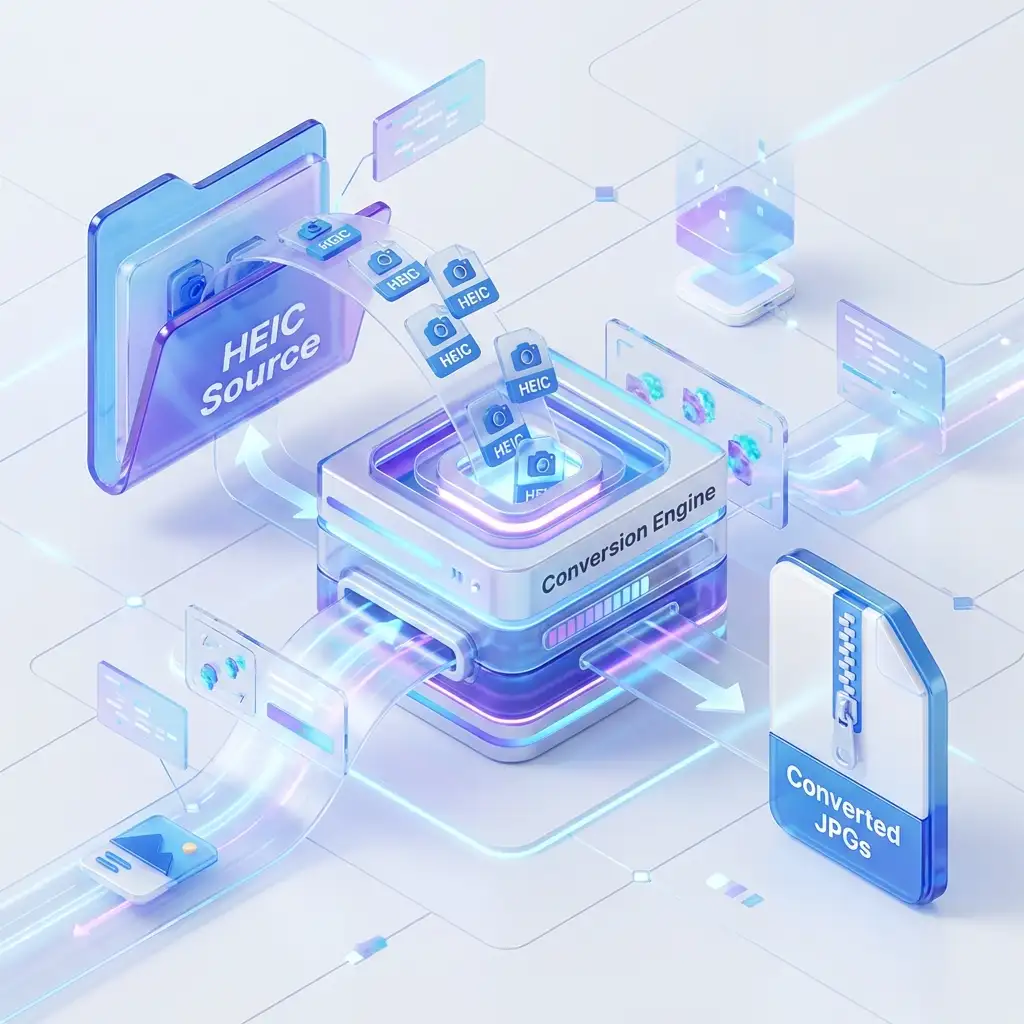
How to Batch Convert HEIC to JPG

Convert hundreds of HEIC files to JPG at once with our free batch converter. Download all converted images as a single ZIP file.

Why Batch Conversion?

If you have dozens or hundreds of HEIC photos from your iPhone, converting them one by one would take forever. Batch conversion lets you convert all files at once and download them together as a ZIP archive.

Step-by-Step: Batch Convert HEIC Files

1

Select Multiple Files

Go to our converter tool and either:

  • Drag and drop multiple HEIC files onto the upload area
  • Click "Choose Files" and select multiple files (Ctrl+Click or Cmd+Click)
  • Select an entire folder of HEIC files

Tip: You can select up to 100 files at once for batch conversion.

2

Configure Settings (Optional)

Before converting, you can customize settings for each file or apply the same settings to all:

  • Output format: JPG, PNG, or WEBP
  • Quality: 10-100% (default: 90%)
  • EXIF data: Preserve or remove metadata
3

Click "Convert All"

Click the "Convert All" button to start batch processing. You'll see real-time progress for each file.

Note: All conversion happens in your browser. Large batches may take a minute, but your images never leave your device.

4

Download as ZIP

Once all files are converted, click "Download All as ZIP" to get all converted images in a single compressed archive.

Alternatively, download files individually if you only need specific images.

Best Practices for Batch Conversion

✓ Do This

  • Convert 20-50 files at a time for best performance
  • Use 85-90% quality for web sharing
  • Keep EXIF data if you need location/date info
  • Choose PNG for images with text or graphics

✗ Avoid This

  • Don't convert 100+ files at once on slow devices
  • Don't use 100% quality unless necessary (huge files)
  • Don't mix HEIC and other file types in batch
  • Don't close browser during conversion

Performance Tips for Large Batches

  • 🚀
    Use a Desktop Computer: Batch processing is CPU-intensive. Desktops/laptops handle large batches better than phones.
  • 🌐
    Modern Browser: Use latest Chrome, Firefox, or Edge for best WebAssembly performance.
  • 📁
    Split Large Batches: If you have 500+ files, split into batches of 50-100 for reliability.
  • 💾
    Close Other Tabs: Free up RAM and CPU by closing unused browser tabs during conversion.

Common Questions

How many files can I convert at once?

There's no hard limit, but we recommend 50-100 files per batch for optimal performance. Your browser's RAM and CPU determine the practical limit.

How long does batch conversion take?

It depends on file count, size, and your device. Typically:
• 10 files: 5-10 seconds
• 50 files: 30-60 seconds
• 100 files: 1-3 minutes

Can I apply different settings to each file?

Yes! Each file in your batch can have its own quality, format, and EXIF settings. Just configure each file individually before clicking "Convert All".

What if conversion fails for some files?

If a file fails, you'll see an error message. You can remove the failed file and try converting it separately, or retry the batch. Other files will still convert successfully.

Ready to Batch Convert Your HEIC Files?

Convert up to 100 files at once. Free, fast, and private.

Start Batch Conversion